


1. Introduction and Login
1.1. Introduction
In this document National Federations (NF) will find practical information on how to submit the entries for the Alltech FEI World Equestrian Games™ in Normandy 2014. It is structured in a step by step manner and contains general information from the organizing committee as well as a manual for the use of the online entry system.
This document is a only a supplement to the
schedule.
In case of inconsistencies, the schedule will always be decisive.
The OC offers also extensive information on accommodation, transport, stables, stabling in the region, veterinary matters and other practical
information on their Extranet for NFs:
www.normandy2014.com/extranet-federations
Please register on the website to get access to a wealth of information.
1.2. Important Dates & Data to prepare
| Date | Activity | Details to be entered in HippoBase | ||||||
|---|---|---|---|---|---|---|---|---|
| Mon | 31 Mar | Original Entries in Principle | ||||||
| Fri | 09 May | Final Entries in Principle | ||||||
| Wed | 25 June | Nominated Entries for Endurance |
Qualifying results (=Certificates of Capability) Origin and destination addresses for horses Chef d'Equipe and vets with email and phone Email for athletes |
|||||
| Mon | 21 July | Nominated Entries All other Disciplines | ||||||
| Definite Numbers of Athletes & Horse and payment of Entry Fees all disciplines numbers to be submitted together with Nominated Entries
|
||||||||
| Thu | 14 Aug | Definite Entries 1: Reining, Dressage, Para-Dressage, Endurance, Eventing |
Horses: Arrival date&time, lorry registration numbers, people in lorry, parking requirements groom accommodation |
|||||
| Sat | 16 Aug | Accreditation deadline first week, for disciplines above |
Names, pictures (.jpg 240x320) and email of NF officials, team officials, grooms, owners, etc. Place & time for pickup at airport /railway station athlete TV pictures |
|||||
| Thu | 21 Aug | Definite Entries 2: Jumping, Vaulting, Driving |
Horses: Arrival date&time, lorry registration numbers, people in lorry, parking requirements groom accommodation |
|||||
| Thu | 21 Aug | First horses arrive (Dressage) | ||||||
| Sat | 23 Aug | Accreditation deadline second week |
Names, pictures (.jpg 240x320) and email of team officials, grooms, owners, etc. Place & time for pickup at airport /railway station athlete TV pictures |
|||||
| Sat | 23 Aug | Opening Ceremony | ||||||
| Sun | 24 Aug | First Horse Inspections (D, R, PED) | ||||||
1.3. Contacts
|
Entries, HippoBase technical support, Accreditation entry NFs |
Andreas Steidle
+49 163 263 7372
entries.normandie2014@hippobase.com |
|
|
OC - Services for NFs, Entry Payment, Local information |
Pauline Laidi
+33 231 84 02 97
info-nf@normandie2014.com |
|
|
Horse Logistics & Arrival, Stable Management |
Peden Bloodstock
+49 208 378 2410transport@peden.de |
1.4. Entries in HippoBase
The HippoBase online entry system allows NFs, the organizer, the FEI and Peden Bloodstock to work on a common online database. If you can see data online so can the other three parties and usually no further confirmation is needed. Apart from the WEG HippoBase is used as entry and event management system at about 40 major horse shows per year.
If you are an experienced user of HippoBase you are probably familiar with most of the subsequent technical explanations. However, there are some things which are particular to these Games which we would ask you to read. For your convenience, those topics have been marked with a bar on the left like this paragraph.
Section 4.7 of the schedule specifies the essential mandatory steps of the entry process. All Nominated and Definitive Entries must be submitted online. Your cooperation in this matter is most appreciated. The online data will be regarded as the only official data by the OC and the FEI. Any information sent to the OC by email or fax which could also be entered directly into the online system will be ignored. The FEI will approve your entries based on athletes, horses and their qualifying results entered in HippoBase.
1.5. Username and password
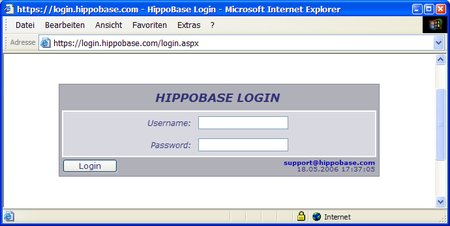
We would appreciate if those people within a NF who already have a login for the HippoBase system and who are familiar with the system would also enter the data for the WEG.
New logins are only issued to individuals, i.e. a person not a federation.
Preferably the person in the NF staff who is usually responsible for international entries and/or who
will really do the typing.
Multiple logins per NF may be requested if there are different people taking care of different disciplines.
A request for a new login must clearly specify the requesting organisation and full name, phone
and e-mail of the person and should be send to entries.normandie2014@hippobase.com.
Login and username are strictly personal and should not be shared with other people. The person to whom the login is being issued will be held responsible for all input and changes done with this login. Whenever data is being modified the login name and the current time is stored as well. If you suspect someone to have knowledge of your password please request a new one.
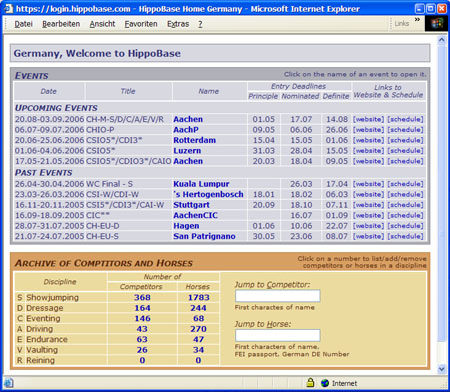
1.6. Your first login
To access the HippoBase login page, please direct your webbrowser to
http://login.hippobase.com
and enter your username and password.
After logging in, you will see the welcome page of your country. In the grey area at the top you will find upcoming events using the HippoBase system for their entries. Once the WEG has been activated for data input, it will appear somewhere at the top of the list.
In the brown area at the bottom you can see an overview of the archive of your NF's athletes and horses. NFs which have never used the system might not see any events and the number of athletes and horses will be zero in most disciplines in the archive.
2. Check In for a WEG discipline
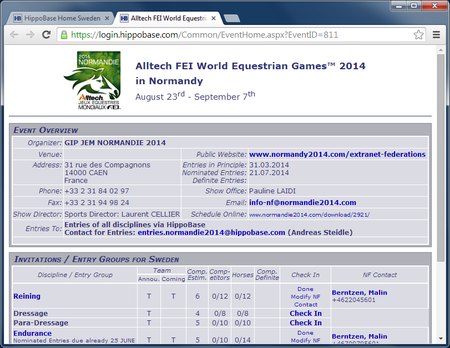
Once we have processed your Entry in Principle the CH-M-R/D/P/E/C/S/V/A Alltech FEI World Equestrian Games should show up in the list of upcoming events so you can open the start page of the event by clicking on "Alltech FEI World Equestrian Games". At the top of that page you will find general information about the event including a link to the schedule. At the bottom, you should find the disciplines you have specified in your entries in principle.
Before you can add any athletes you must do the Check In procedure and leave your contact with the OC. In the picture on the right, the Check In has already been done for Reining and Endurance and still needs to be done for Dressage and Para-Dressage.
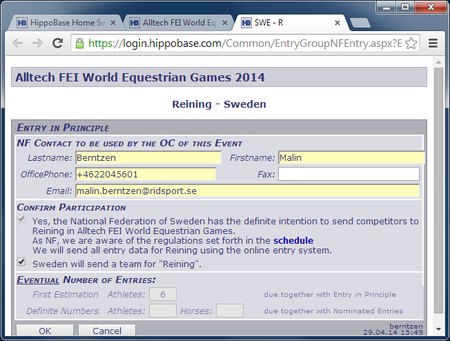
The contact fields are being filled in automatically with the information that has been saved with your user account. Please enter the contact of the person really doing the entry work rather than an official of your NF. The contact may be changed any time and can also be modified by the organizer. Once you click the checkbox stating your intention to submit the entries online, the OK button at the bottom should be enabled. If there is a checkbox for team and you still intend to send a team this should be activated as well.
After clicking you will see that the name of the discipline on the WEG start page has become a link like "Reining" and "Endurance" in the previous picture. This link will be used in the next chapter to start your list of athletes.
Repeat the Check In procedure for all disciplines you are responsible for. Unless you already know your athletes your job is done for now.
3. Add athletes & horses for Nominated Entries
3.1. Add athletes
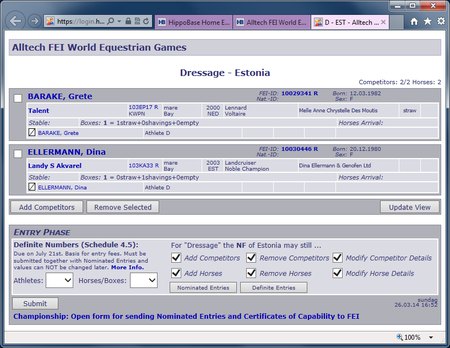
Once you have done the Check In for a discipline as described in the previous chapter, clicking on the name of a discipline will open an empty athlete list with the message "no competitors registered". On the picture to the right, two riders and their horses have already been added to this list. The OC and the FEI can see this page the same way you see it.
Use to open a list of athletes from the HippoBase archive.
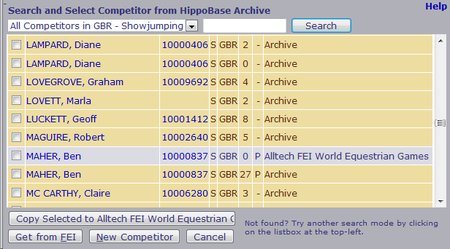
By default, the system shows you all athletes in the HippoBase archive for your NF and the current discipline. To select athletes for the WEG, check the box in front of the desired athletes and click .
If the list is empty or you don't find your athlete in the list please use the button to copy your athlete from the FEI registration. This is also the best choice if your NF or the Discipline you are working on rarely uses HippoBase in which case you do not have to bother about the next step.
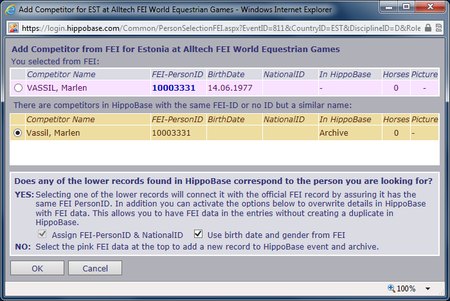
If you want to be sure to use the latest data from the FEI you can always use the "Get from FEI"
function - even if your competitor is in the HippoBase archive.
Should the athlete already exist in HippoBase (may be with contact data and picture) you
will be offered the option to merge it with the new data from the FEI.
In the picture on the right the brown record from the HippoBase archive will be used and extended
with the date of birth from the FEI.
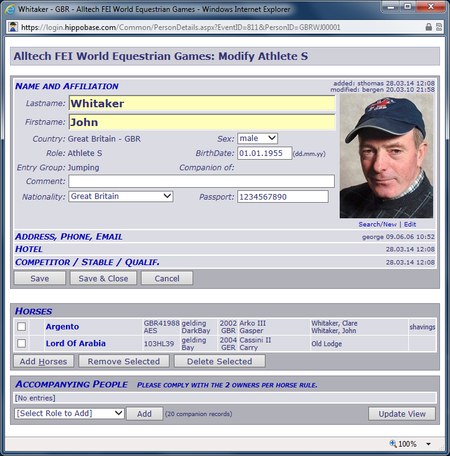
Once an athlete is listed for the WEG, you can click on the name to open his/her details.
I addition to the fields you see in the picture on the right you might need Address, Phone, Email to enter contact details or Competitor/Stable/Qualif. to enter qualifying results and FEI-PersonID. Click on the text line to open and close sections with these additional details.
Hotel bookings for the WEG in Normandy are NOT handeled in HippoBase. Please see the information and contact on the OC's extranet website.
It is important that athletes have their correct FEI-PersonID (e.g. 10012345) as this number will be used to check data and results on the FEI server. It is easy however for you to make sure it's correct: Clicking on the number anywhere in HippoBase should open the page of that athlete on the FEI website.
3.1a Add Vaulting Athletes, Squads, Pas de Deux
Click here to open special information on Vaulting.
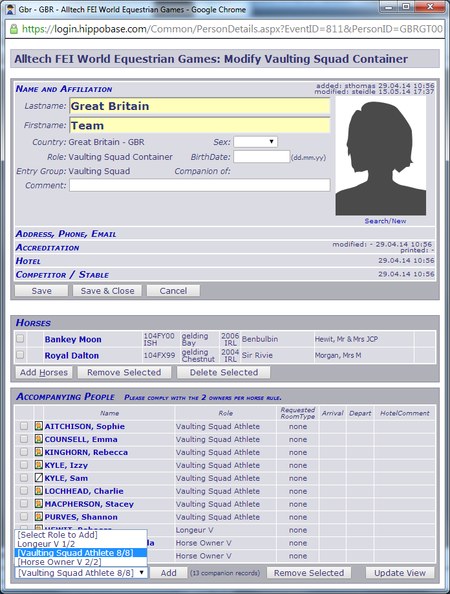 For Vaulting Squads or Pas de Deux we use a simple workaround to structure a team and its
members in the system.
A dummy person is used as "team container". The athletes, lungers, and other
team members are added under Accompanying People of that dummy person.
For Vaulting Squads or Pas de Deux we use a simple workaround to structure a team and its
members in the system.
A dummy person is used as "team container". The athletes, lungers, and other
team members are added under Accompanying People of that dummy person.3.2. Add horses
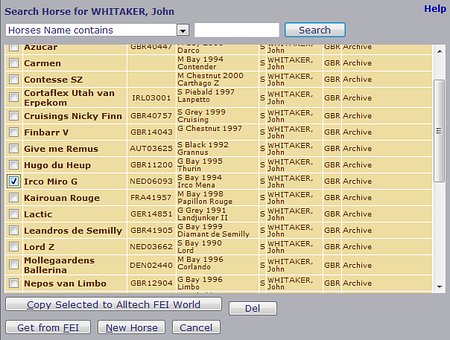 Horses must be added to their athletes. To open a athlete's form, click on his/her name.
Use at the bottom to open a
dialog window for selecting horses.
Horses must be added to their athletes. To open a athlete's form, click on his/her name.
Use at the bottom to open a
dialog window for selecting horses.
By default, only the horses which have been associated with this athlete in HippoBase are shown. In the list, check the box in front of the desired horse and click .
If you can not see the horse in the default list use the button to copy data from the FEI registration database to your entries. The "Get from FEI" function realizes if you search for a horse that's already in the HippoBase archive or entries, so you can also use it to override incomplete details in HippoBase with data from the FEI.
It is important that horses have their correct Passport Number / FEI-ID as it will be used to check data and results on the FEI server. However, it is easy for you to make sure it's correct: Clicking on the number anywhere in HippoBase should open the page of that horse on the FEI website.
3.3. Enter qualifying results
In order to participate at the WEG, athletes and/or horses must have qualifying results. The information on these results must be provided by the NFs in HippoBase and the corresponding confirmation will be given by the FEI in the online system as well. In most cases, it should therefore be possible to communicate the results and the resulting approval by the FEI without any paper or extra emails.
The FEI has published the information on the qualification procedure on their website. When entering the results in the online system the format specified in the table must be used.
| Discipline | Specify For |
Data Required
Example
|
|---|---|---|
| Jumping | athlete and horse |
event, country, date, competition, round 1, round 2
CSIO5* La Baule, FRA, 15-18 May 2014, GP, 0 faults
CSIO3* Odense, DEN, 15-18 May 2014, NC, 0 faults, 0 faults * * necessity of second result depends on qualification criteria
|
| Dressage | athlete only |
event, country, date, competition, total score, 5* judge's score, 5* judge's name
CDI5* Salzburg, AUT, 05 Dec 2013, Grand Prix, 66.340%, 66.383%, Ghislain Fouarge
|
| Eventing | athlete and horse |
event, country, date, dressage penalties, cross-country penalties (penalty and time), jumping penalties
CCI4* Badminton, GBR, 18-21 May 2006, 74.75, 0, time, * 0
* necessity of second result depends on qualification critera
[no updated specification received from FEI Eventing department]
|
| Driving | athlete only |
2 x CAI2* , CAI3* or CAIO4* - Dressage Test 8a or 11, 65 pts or less
Event, country, date, dressage test no, score, confirmation of completion of Dressage, Marathon and Cones
CAI3*-H4 Kladruby (CZE) 24-27.04.2014, Test 11, 56 pts, Dr,Ma,Co Completed
|
| Endurance | NON ELITE Status athlete, horse and combination |
athlete: event + distance, country, date
(4x CEI2* or higher)
CEI2* Uppsala, 120km, SWE, 30/06/2012
horse: event + distance, country, date
(2x CEI2* or higher)
CEI3* Leersum 160km, NED, 23/08/13
combination: event + distance, country, date, minimum average speed
(1x CEI3* 160km athlete and horse in combination (minimum 14kph, time frame 4*CH))
CEI3* Kevelaer 160km, GER, 07 June 2014, 14.91
|
| ELITE Status athlete and horse |
athlete: event + distance, country, date
(10x CEI3* or higher)
CEI3* 160km Compiègne, FRA, 25 May 2014
horse: event + distance, country, date, average speed
(3x CEI2* or higher, with at least one with minimum average speed of 14kph, time frame 4*CH)
CEI2* 120km Flores, URU, 12 February 2013, 16.36
|
|
| Vaulting | Indiv M/F vaulter only |
Europe: 2 x CVI3* or Championship, min. final score 7.0 points
outside Europe: 1 x CVI3* or Championship, min. final score 7.0 points
Event, country, date, score
CVI3* Doha (QAT) 10-15.03.2014, 7.3 final score
|
| Pas-de-Deux vaulter only |
1 x CVI3* or Championship, min. round score 7.0 points
Event, Country, date, round, score
CVI3* Ermelo (NED) 02-05.05.2014, round 1, 7.6 score
|
|
| Squad |
(no qualification required)
|
|
| Reining | athlete only |
2 x CRI3*, min. average score at each of 68 pts
event, country, date, score
CRI3* Wiener Neustadt (AUT) 17.04.2014, 70 pts
|
| ParaEquestrian | athlete only |
CPEDI3* or 4* / class=indiv or team / minimum 60%
event, country, date, competition, total score
CPEDI3* Deauville, FRA, 05 April 2014, Individual, 63.276%
|

Information on qualifying results must be entered on the details page of a competitor or horse.
For competitors, open the
Competitor/Stable/Qualif.
section to see the Qualification field.

Horse forms have a Qualification field at the bottom.
Please enter one result per line in these text boxes. Depending on the qualification requirements
of a discipline, only one or both boxes have to be filled in.
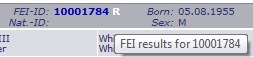
How can I find qualifying results? For Jumping, Dressage, Eventing, Endurance and Driving the FEI
offers a fabulous "Perfomance" page on data.fei.org. On the page where you added your athletes
you can open this page directly from HippoBase by clicking on the "R" behind the FEI Person ID
or the horse passport number.
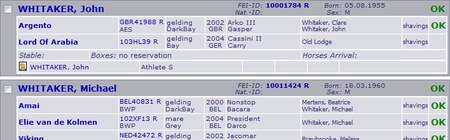
The FEI has access to HippoBase and will check your athletes and horses. FEI-approval for your data and qualifying results will be issued in form of a OK on the right side of the athlete and horse list as can be seen in the picture. Holding the mouse pointer over the OK will reveal when and by whom a record has been approved.
A note on data details: Besides qualifying results, athletes and horses must have complete details to be approved.
For athletes, this includes FEI-ID, gender and date of birth.
For horses the name, gender, year of birth, country of birth, sire, sire of dam, breed, FEI passport number
and name(s) of owner(s) including their address is required.
If you copy your data using the "Get from FEI" function most of this data should be available anyway.
Therefore we urgently recommend to start by reviewing the details of your WEG candidates in the FEI database.
The OC also has the possibility to compare/synchronise details with the FEI database and will extend your data where applicable.
In two cases the official values from the FEI will always be used no matter what's entered in HippoBase:
Horse names and owners.
3.4. Origin & Destination Addresses for Horses
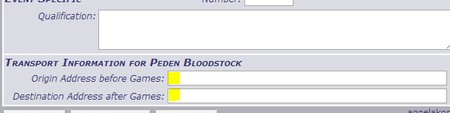
The details page of each horse has two fields for the origin and destination address on the bottom. Please fill these fields with the full address (street, postal code & city, country) specifying where the horse comes from and where it will go after the Games. This is required by the local veterinary authorities.
3.5. Definite Numbers of Athletes and Horses
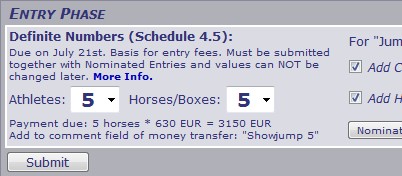
This is a new procedure allows the OC to better plan its resources and calculate the entry fees. For all disciplines except Endurance the Definite Numbers of Athletes and Horses must be provided in order to confirm and submit the Nominated Entries on 21 July. For Endurance the Nominated Entries can be submitted without these numbers but the numbers must then also be provided on 21 July. Once you have confirmed your Nominated Entries the Defintie Numbers can no longer be modified!
Once you have clicked the Submit button to save the numbers the price due for the discipline will be displayed.
It is important that the OC can see from the comment line of your money transfer the number you pay for in each discipline to determine how the total amount corresponds to the numbers in HippoBase.
Please use the quoted expressions like seen in the picture to form a list like
For details on payment please see "6. ENTRY FEES" in the Schedule or contact info-nf@normandy2014.com.
Advanced Details on Definite Numbers: The numbers you can select are limited to your estimation given with Entries in Principle and the number of athletes entered. If this is not appropriate please contact us at entries.normandie2014@hippobase.com. Many disciplines specify "with one horse each" for the Definite Entries in which case the number of horses is automatically bound to the number of athletes. For the other disciplines please specify the number of horses YOU really BRING to the venue, i.e. the number of boxes you will occupy. Do not count a horse brought to the venue by another athlete. This applies especially to vaulting and shared reserve horses. So for a single individual vaulter borrowing his horse from another athlete the setting would be 1 and 0 even though you have a horse listed above.
To cancel your participation in a discipline please remove all athletes above and Submit 0, 0.
3.6. Confirm Nominated Entries in HippoBase
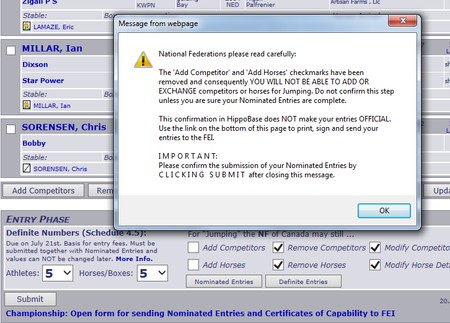
At the bottom of the athlete list, there is a box labeled Entry Phase. The six checkboxes therein specify what you as NF are still allowed to do.
To confirm your Nominated Entries
Your submission is successful only once
Nominated Entries
is displayed in the title of the rider list and the two leftmost checkboxes controlling the right to add athletes and horses are empty and disabled. Technically the state of Nominated Entries simply means that the "Add Competitor" and the "Add Horse" buttons disappear and the addition of athletes and horses will no longer be possible. Also you can no longer change the Definite Numbers. If you have accidentially submitted your entries before the date of the Nominated Entries and still need to add athletes or horses please contact us undo this step.3.7. Nominated Entries and Certificates of Capability for FEI
Before you start:
Do not submit Nominated Entries if you have not entered the qualifying results as specified in 3.3.
The quaifying results MUST show up on the form ou submit.
A special list of the Nominated Entries which adds the legal terms to your athletes and horses that make it a Certificate of Capability must be printed, signed and sent to the FEI. Compared to the traditional paper forms this will avoid a lot of manual work for NFs and assures that the athletes and horses with Certificates of Capability are the same as the ones submitted online. Furthermore the signed document will serve as the legally binding long-list from which all athletes and horses have to be chosen for the Definite Entries and any Substitutions.
A link to the special list is available at the bottom of the page where you add the athletes (see bottom of picture above). You can open the list as a draft any time but it can only be signed and submitted to the FEI once the entries have been confirmed as Nominated as described in 3.5. above.
4. Accreditation
All people being part of a NF delegation who need venue access must apply for accreditation in advance by entering names and pictures into HippoBase. People can be added at three different levels:
| per... | where to add in HippoBase |
| nation | bottom of the WEG start page "People Accompanying NF Delegation " |
| discipline | bottom of the list of athletes in a discipline "People Accompanying Team" |
| athlete | bottom of a athlete page "Accompanying People" |
Accreditation quotas and acces rights are defined in APPENDIX 4 to 6 at the end of the schedule.
Before you can enter a name you must select what type of person (="Role") you want to add. The Role determines the access rights of a person and you might want to have a look at APPENDIX 5 to make sure a person can acces the places he/she needs.
The OC is aware that the people accompanying the athletes are a consequence of the athletes and horses being selected at the Definite Entries. Therefore the deadline for accreditation input is 2 days after the deadline of the Definite Entries:
| Week | DefEntries | Accred Deadline | People to be submitted for accreditation |
| 1 | 14 Aug | Sat 16 Aug | "Multi-Discipline"-NF Representatives (see 4.1.), Reining, Dressage, Para-Dressage, Endurance, Eventing |
| 2 | 21 Aug | Sat 23 Aug | Jumping, Vaulting, Driving |
In the evening (CET) of the specified days the accreditation data will be forwarded to AP2S, the service
provider who prints and issues the passes at the venue.
Non further data transfer will take place after the respective deadline so any requests you make
after that date will have no effect.
If you have any additions or changes for accreditation after the respective deadlines we
kindly ask you to resolve this when you arrive.
But please keep in mind that only the Chef de Mission, Chef d'Equipe and athletes are authorized
to add or change accreditations under their respective domain and only within the quotas
specified in the schedule in APPENDIX 4.
4.1. Add NF Representatives
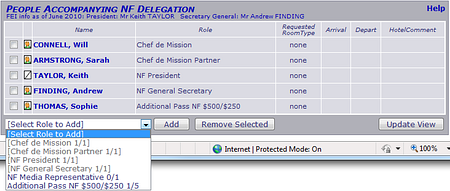
On the bottom of the first page of the WEG (first picture in chapter 2), you will find an area named People accompanying NF Delegation. These are people which are not related to a specific discipline and where passes will be valid for the entire period of the Games.
Select the desired type of person in the list-box labeled "Select Role to Add" and click to open an empty form for a new person.
If the President or the Secretary General of your federation will attend the WEG enter them here to apply for an accreditation. Please understand that the OC cannot accept any deputies here, i.e. honorary or vice presidents or other important NF representatives can not be accreditated under this Role.
The Chef de Mission can be entered here as well if your country participates in three or more disciplines. Should your participation be reduced to less than three disciplines in the course of the entry process your chef de mission and his/her companion must be deleted. If he/she still needs to enter the venue you will have to re-enter him/her under a discipline or athlete.
4.2. Add companions per discipline
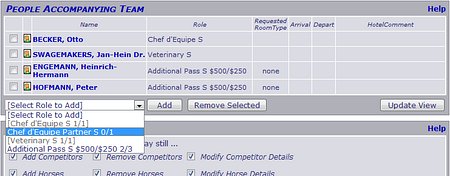
On the bottom of the page where you added the athletes you will find a box
called People Accompanying Team.
There you can add a Chef d'Equipe (+ partner/assistant), a trainer and a vet.
The available types of people and the maximum allowed should correspond to APPENDIX 4 of the schedule.
If you should have to completely cancel the participation in a discipline, i.e. you delete all athletes, you are not entitled to per-discipline-companions in this discipline either and you must delete all of them as well.
4.3. Add athlete companions
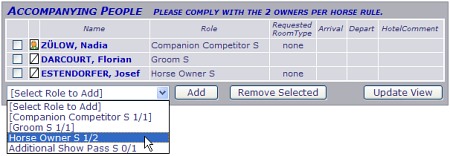
On the very bottom of each athlete page, you will find a listbox labeled "Select Role to Add" which allows you to select a partner, groom, horse owner, etc. Select the desired type and click to open an empty form for a new person.
The available types of people and the maximum allowed should correspond to APPENDIX 4 of the schedule.
To remove a companion, tick the checkbox in front of the person and click .
4.4. Accreditation pictures
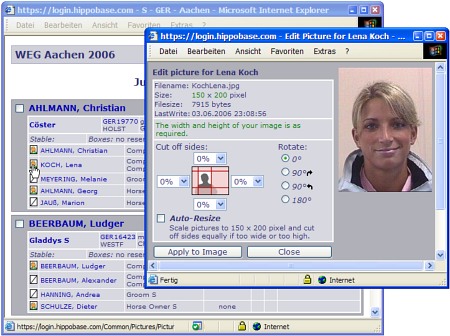
The HippoBase system allows to assign pictures to people for the use on show passes.
There are two ways of adding or modifying pictures:
1. On the page of a person, you can add or format a picture by using the two links
below the picture.
2. In the riders/companions list, there are little icons in front of the names
of people. A white one with a diagonal line signifies that there is no picture assigend
to the person and you can click on it to search or upload a picture. The icon with
the little head shows that there is a picture and when you click on it you can cut/modify
the current picture.
People who already have a picture of good quality in HippoBase may keep it even if it has a smaller size than defined below. Pictures of many major events including the last WEG are in the HippoBase archive and simply need to be re-connected to the records of the people you enter.

Requirements for new accreditation pictures:
- Accepted file formats: JPEG, GIF, PNG or BMP
Even though they may contain pictures Word documents or PDFs are text documents and can NOT be uploaded. If you do not know how to extract a picture from such a document please ask someone to help you with this. -
Size: approx. 240 x 300 pixels, 10 - 40 KiloBytes
Allthough HippoBase will accept larger pictures we highly recommed you cut and resize your pictures on your computer before uploading them. The upload of large files is inherently slow over most internet connections. Shrinking your file before upload can speed up you upload by a factor of 10.
If you have many large, odd-sized or mal-formatted pictures we recommend free, easy to use graphics software like XNVIEW or IRFANVIEW to cut and shrink your pictures
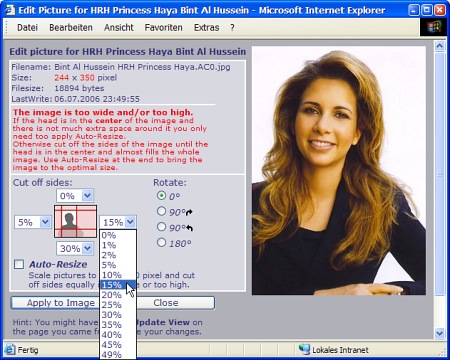
A common error is that the head takes only a small portion of the picture and when printed the face will not be recognizable. It is recommended that you format and resize the pictures on your computer before uploading them. If this is not possible HippoBase offers rudimentary support for cutting and resizing pictures.
Use the "Cut off sides" options after upload until the
head is in the center and almost fills the whole area of the picture.
Select one or more % values and then click
to make your
settings take effect.
Until you have some experience use small % values repeatedly when cutting a
picture as there is no undo function. If you accidentially cut off too much
please upload the original picture again.
If the picture is still too large after cutting of the sides you can finish with
the Auto Resize option to bring the picture to the required size of 240x300
pixels.
4.5. People with 2+ functions
When you add a new person with a name that is the same or very similar to that of
an other person the system will warn you about a potential duplicate.
Generally a person should only be entered once in HippoBase.
However, for the WEG this is different:
If a person has two or more functions he/she must be entered multiple times.
Examples for this are
- vet for 2+ disciplines
- lunger for 2+ vaulters, vaulters for team and individual
- grooms for multiple athletes
- athlete and trainer/horse owner/companion
- or any other combination ...
Select when the system warns you about a duplicate. Use the comment line for both occurences of the person to give information about the exemption e.g. "see also eventing trainer".
4b. Details Required for Definite Entries
4b.1. Horse Lorries and Arrival Times
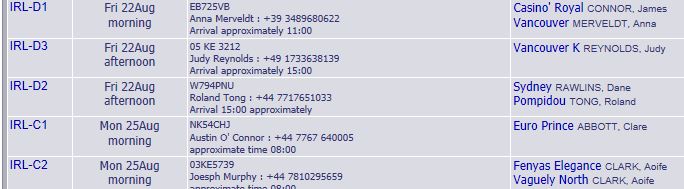
On the start page of the Games in HippoBase use the link Arrival information for horses and vehicles.
Peden has created some "virtual parking spaces" for the horse lorries they think you will have.
Each "virtual parking space"/lorry is identified by a code consisting of your NF and a character for the discipline (A=Driving, C=Eventing).
Once you have provided data about a transport the lines in the table should look like in the picture on the right.
[Technically this is the same procedure as for the London Olympics.]
Peden Bloodstock: transport@peden.de +49 208 378 2410
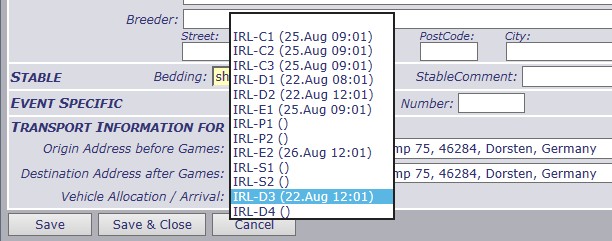
Start by filling in some basic fields for each transport. Then go to the bottom of the page and open a horse. On the bottom of the horse's detail page, please select the transport the horse will use and click save. The horse should show up on the right of your list of transports.
Peden requires ALL fields in the
"Equestrian Vehicle Allocation" form:
- Proposed date/time arrival at venue
- Registration number of vehicles, also vehicle's length and ram side
- Contact name & number for lorry
- Whether they wish their boxes to be bedded down prior to arrival
4b.2. Bedding of Horses
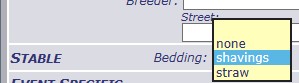
Open a horse by clicking on its name anywhere in HippoBase. On the bottom of the horse's details page you find a selection box for bedding.
Note that on your entry list for a discipline you can see the bedding on the right of each horse row.
Peden needs to know whether the your team wishes to have boxes bedded down, i.e. have the shavings or straw distributed by the OC before you arrive. This can only be selected "per transport" on Peden's "Equestrian Vehicle Allocation" form.
4b.3. Pickup for People at Airports & Stations

Open a discipline list of your entries (where you added the competitors).
On the rows with people for accreditation there are links "Add pickup info in HippoBase".
The links will only be available for Roles where the OC bears the charges for the transport:
Chefs d'equipe, vets, trainers, grooms, lungers, para-carers, chef de mission.
Once completed a request looks like the grey line in the picture.
It will turn green once confirmed by the OC.
Your requests are being processed by the OC's transport department:
arrival-departure@normandie2014.com
Be sure to have arrival time, exact airport-terminal, flight number and destination before filling in a request as HippoBase will not accept the form without all fields filled in. Note that only specific pickup and dropoff locations are selectable on the form - those served by the OCs transport services.
4b.4. Grooms Accommodation

Open the page of a Groom. In the Hotel section on the bottom there is a yellow bar where you can select whether the Groom will sleep in a lorry, OC accommodation or off-site.
In lorry / OC accommodation or Off-site according to numbers confirmed by email by the OC for lorries allocation and OC accommodation number of rooms. Please respect these numbers in your allocation and note that no more rooms will be provided if not booked previously. All requests had to be done to the OC before August 8th. No more modification possible
4b.5. Email & Phone for Chefs d'Equipe and Vets
Please go to the details pages of
- Chefs d'equipe
- Team Veterinaries
to enter their email address and mobile phone number. The OC requires these to communicate with the teams during the competitions.
4b.6. Athlete Portraits for TV Broadcast
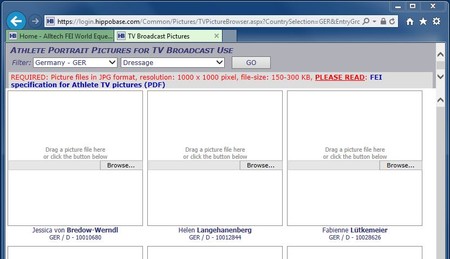
On the start page of the Games in HippoBase use the link Upload athlete portraits for TV. If you have a modern browser you should be able to drag the pictures from a file folder on your computer directly onto a person in the browser window. For older bowsers you can use the button in a square to select a picture on your computer.
Please read
FEI specification for Athlete TV pictures (PDF)
to prepare the pictures in the right format.
The pictures are used and processed by the FEI. Please contact for details: usersupport@fei.org
Resolution approximately 1000 x 1000 pixels (=square!).
File size 100 to 500 KiloBytes
If you are not sure what these numbers mean please ask someone to help you with this and do not simply upload anything you have.
Regular HippoBase accreditation pictures (240x320, ~25KB) are too small and and fotos strait from a digital camera are usually WAY to big.
To get the right format you will need to use a software on your computer to cut out the square area and then scale it to 1000x1000 pixels.
Your cooperation on this is most appreciated! Thank you!
Two free, popular and easy to use softwares for cutting and resizing on pictures are
XNVIEW and
IRFANVIEW.
5. Definite Entries
5.1. Remove athletes and horses
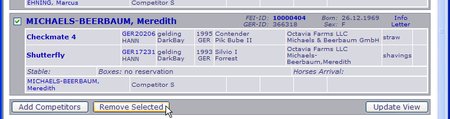
Delete athletes not coming to the show from the long list by clicking the checkbox in front of the riders name and then at the end of the list. Deleting an athlete will automatically remove all his horses and companions.
To remove horses please open the respective competitor by clicking on his/her name. In "Horses" section on the competitor's page mark the checkbox in front of the horse to be removed and then click the "Remove Selected" button at the end of the horse list.
 Around the end of July we will lower the limit of allowed athletes and horses from the
generous values allowed for the Nominated Entries to the values you specified as the
Definite Numbers for Ahtletes and Horses.
Before you continue make sure this limit is met and the number of athletes and horse
displayed at the top right no longer appears in red.
Around the end of July we will lower the limit of allowed athletes and horses from the
generous values allowed for the Nominated Entries to the values you specified as the
Definite Numbers for Ahtletes and Horses.
Before you continue make sure this limit is met and the number of athletes and horse
displayed at the top right no longer appears in red.
5.2. Confirm Definite Entries
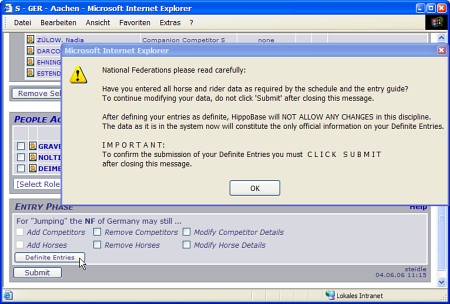
Before submitting your Definite Entries please check that you have entered all data of athletes and horses as specified in the schedule and in the entry guide.
After executing the three steps below, you will not be able to make any more changes in that discipline.
In the discipline you wish to submit your Definite Entries please go to the bottom of the list of riders. In the box labeled Entry Phase
Your submission is successful only once
Definite Entries
is displayed in the title of the list of competitors
and the Entry Phase box at the bottom has disappeared.
If you have accidentially submitted your entries before the date of the
Definite Entries please contact us to undo your submission.
We hope entering your data with HippoBase has not caused any major inconveniences for you. Your effort and cooperation was much appreciated by Equinis and the Organizing Committee of the Alltech FEI World Equestrian Games™ in Normandy 2014.
We wish your athletes and horses good health, good shape and successful competitions in Normandy.
Thank you for your patience and cooperation!